



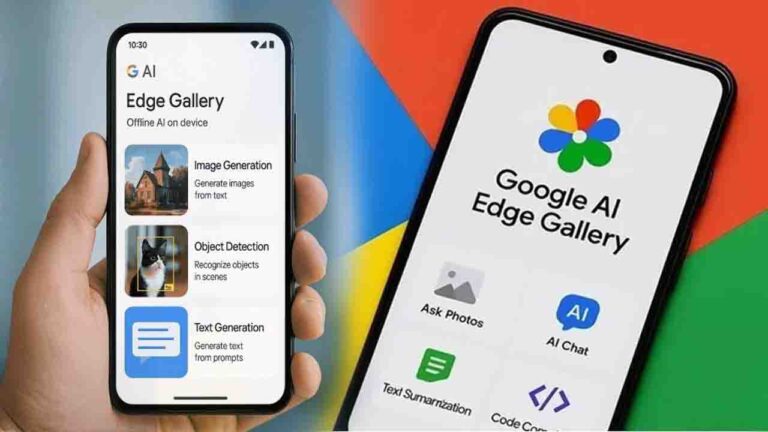

Google Edge Gallery App: Google has officially bridged the gap between high-end artificial intelligence and offline accessibility with the launch of the Edge Gallery app. This new utility allows users to download and store entire AI models directly onto their smartphone’s internal memory, turning the device into a self-reliant smart assistant that functions even in Flight Mode.
Unlike traditional AI applications that rely on cloud processing, Edge Gallery executes all computations locally. This shift means that conversations, queries, and data processing remain strictly on the device. By eliminating the need to send information to Google’s servers, the app provides a significant layer of privacy for users concerned about data security.
Advanced Features Without Connectivity
The Edge Gallery app is equipped with several high-performance tools designed for offline utility. One of the standout features is the ‘Thinking Mode’, which allows users to see the logical steps the AI takes to arrive at a specific answer, providing transparency in the reasoning process.
For developers and students, the app offers offline coding capabilities. Users can generate code structures for websites or games without a single kilobyte of data. Additionally, the ‘Ask Image’ feature enables the AI to analyze and describe photographs from the phone’s gallery while remaining completely disconnected from the web.
The application also introduces ‘Audio Scribe’, a tool tailored for professionals and students. It can transcribe and translate live lectures or meetings in real-time without an internet connection. Furthermore, the AI can summarize long documents locally, utilizing the phone’s onboard processing power to extract key insights instantly.



Step-by-Step Setup Guide
Setting up the Edge Gallery app is a straightforward process, though it requires an initial data investment to download the necessary models.
- Installation: Search for and install “Google Edge Gallery” from the Google Play Store or Apple App Store.
- Model Selection: Open the app and navigate to the ‘AI Chat’ section.
- Download: Select the Gemma-4-E2B-it model. This is the primary engine, approximately 2.54 GB in size.
- Activation: Once the download is complete, tap ‘Try It’ to begin your offline session.
- Additional Tools: Users can separately download specific modules for Audio Scribe and Ask Image as per their requirements.
System Requirements and Limitations
To ensure a smooth experience, Google recommends using smartphones with at least 6 GB or 8 GB of RAM. Devices with lower specifications may experience sluggish performance or lag during complex tasks.
Users should also account for storage space, as the AI models occupy between 2 GB to 4 GB of internal memory. It is important to note that because the AI is local and not linked to the live web, it cannot provide real-time news or weather updates. Additionally, intensive local processing may cause the handset to warm up during prolonged use.